The Easy Way to Run Your AI Agent in a Sandbox
Your developers should be running Claude Code in a container. Are they?
In my experience few developers do this. This leaves you open to prompt injection attacks, NPM script injection attacks, and just simple destructive errors that AI agents can make.
Developers don’t use containers every time because it’s difficult. We need to minimize friction: make the easy path the safe path.
I’m going to show you how to do this easily — and you don’t even need Docker.
# Don’t do it like this! I’m going to show you the easy way.
docker run --rm -it \
  --network=none \                      # or a custom bridge with an egress proxy
  --read-only \
  --tmpfs /tmp:size=512m \
  -v "$PWD":/workspace:rw \
  -v ~/.claude-sandbox-auth:/auth:ro \  # only the API key, nothing else
  -w /workspace \
  --user 1000:1000 \
  --cap-drop=ALL \
  --security-opt=no-new-privileges \
  claude-code-sandbox:latest
Why to do this
First, let’s briefly review what could happen if you don’t run your AI agent in a container:
- It could delete your database by accident
- It could delete source code intentionally (malicious prompt injection)
- It could wipe your Mac
- It could leak your credentials
- That repo you cloned from GitHub could be installing malware
I doubt I need to convince you. If you’re a developer, or on an engineering team, you’ve seen the news stories. You already know it’s a risk.
The Easy Way
The simple mitigation for this problem is to run the AI Agent in a Docker Sandbox, or sbx for short.
Docker Sandboxes is a new tool from the Docker people, but it’s not based on Docker. You don’t even need to have Docker installed, because it uses lightweight but secure microVM containers. You can read more about microVMs here.
It could not be easier to use:
cd ~/dev/my-project
sbx run claude
That’s all you need to do. All the hard work is done for you:
- A microVM container is started.
- Claude is installed and configured in the container.
- An optional network policy is installed in the container (egress firewall).
- Claude has access to the files in your project, but nothing else on your system.
- When you authenticate Claude,
sbxpersists your credentials securely so that you do not need to re-authenticate in every sandbox.
No Dockerfile is needed, and the project directory stays clean: sbx itself doesn’t add or modify any files in your project.
As if that wasn’t enough:
- Within the container, Docker is available. Your AI agent can spin up its own Docker containers. This is the case even though the sandbox itself is not running under Docker.
Running Other Agents, or a Shell
The sbx command knows how to run several popular AI agents, including Claude, Codex, Copilot, Cursor, OpenCode, and more. For example, run Codex like this:
sbx run codex
To work directly from a command prompt, start a shell in a container:
sbx run shell
The Sandbox Lifecycle
The workflow could not be simpler, but a valid concern is what residue this leaves behind on a developer’s PC.
With traditional containers, each project can leave behind Docker-managed resources like containers, images, and volumes. These are large, and over time they can clutter your system and need to be cleaned up.
sbx makes this easy to manage with built-in commands to list and delete sandboxes. See Usage for details. There’s another way to manage sandboxes, though, and that’s to run the sbx command with no arguments. This starts a TUI (a “text GUI”):
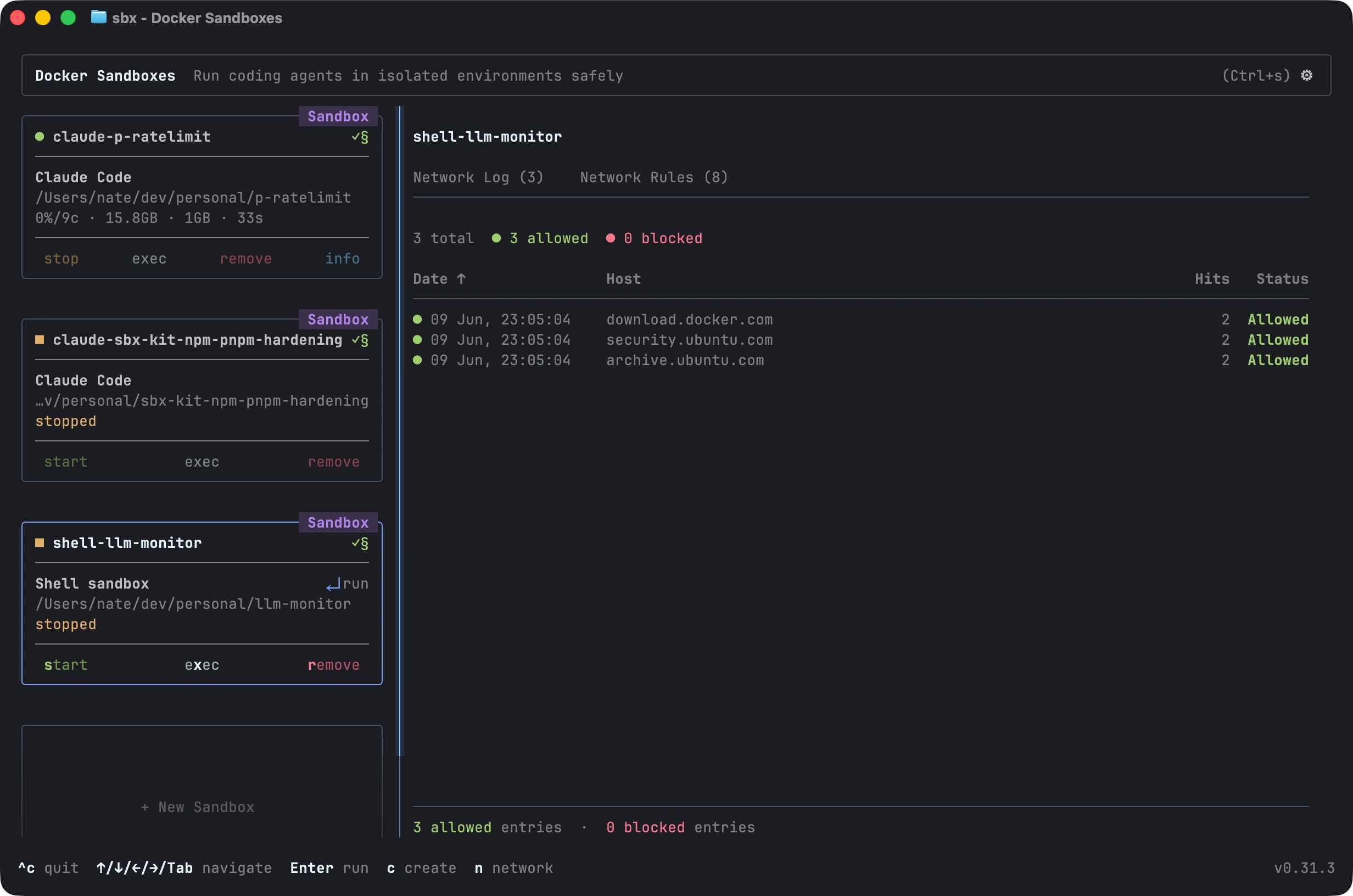
From here you can visually manage, create, activate, or remove sandboxes.
No excuses
With containerization this easy, there’s no reason to ever run a “naked” AI agent again. There are a handful of similar tools out there: you can use the Dev Container CLI; or one of many homegrown utilities, like my own focus. Right now, none of them come close to the ease-of-use and smooth developer experience that Docker Sandboxes provides. Try it out and share this with your team today.
- Docker Sandboxes https://www.docker.com/products/docker-sandboxes/